

Let’s be honest: most of us check social media updates while we are on the move. Handheld smartphones have completely taken over our daily routines, making it incredibly easy to scroll through videos or browse daily updates while waiting in line or commuting. Because our phones are always in our hands, finding a responsive web utility that works perfectly on smaller screens is essential if you want to keep your personal browsing choices private.
When you try to view profiles directly through a standard mobile browser, tracking scripts and sudden login walls constantly interrupt you. If you want to bypass these annoying pop-ups without ruining your personalized daily feed, using a dedicated web-based proxy terminal is your best move.
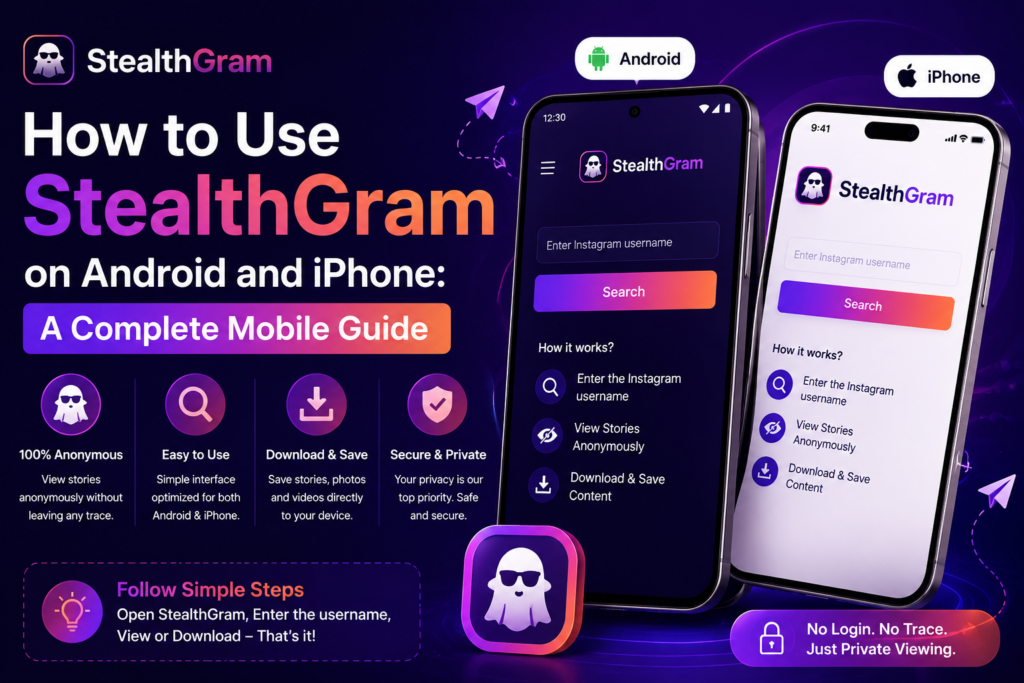
The great thing is that StealthGram is fully optimized to work across all modern mobile operating systems. In this practical mobile guide, we will break down exactly how to use StealthGram on both Android and iOS devices so you can protect your viewing habits instantly.
Why Avoid Mobile App Downloads?
Many third-party platforms force you to download unverified application files, like an unknown APK file for Android or a custom profile setup for an iPhone. Downloading standalone mobile apps often brings serious privacy issues that you should avoid:
- Invasive Hardware Requests: Unknown applications often demand deep access to your personal phone contacts, local photo galleries, and continuous GPS location tracking.
- Battery and RAM Drain: Heavy background scripts running constantly will drain your smartphone’s battery life and make your phone laggy.
- Security Vulnerabilities: Installing unsigned files can bypass your phone’s default security setup, creating dangerous security weak spots on your personal device.
By choosing the clean, browser-based mobile dashboard of StealthGram, you eliminate these hardware security risks completely. The entire framework runs safely on cloud servers, keeping your phone’s native operating system completely untouched.
Setting Up StealthGram on Your Android Phone
Android devices give you a lot of freedom when it comes to running web applications. Whether you prefer using Google Chrome, Samsung Internet, Microsoft Edge, or a privacy browser like Brave, launching the StealthGram terminal is fast and straightforward.
Here is exactly how to do it:
- Unlock your Android device and launch your default mobile web browser.
- Tap the top URL search bar, type in the official web address for StealthGram, and hit enter to load the index.
- As soon as the clean, mobile-responsive layout loads on your screen, look for the main search input field.
- Type the clean, raw handle of the public creator or business profile you want to audit using StealthGram. (Just remember: do not include the
@symbol at the beginning, and make sure your phone’s keyboard did not add a random space at the very end). - Tap the search icon or action command to let StealthGram process the request.
- Scroll down to view the fetched media timeline. If you want to save a video or picture directly to your device storage, press and hold down on the file and tap the browser’s native “Download image” command.
Setting Up StealthGram on an iPhone
Apple’s iOS framework is famous for its tight security boundaries, sandboxed apps, and strict anti-tracking rules. Because of these built-in protocols, using the mobile Safari engine or a customized iOS browser just requires you to know exactly where your downloaded files go.
Follow these steps to browse:
- Open the native Safari browser app (or Chrome for iOS) on your iPhone.
- Go straight to the official main website directory of StealthGram.
- Locate the centralized text interaction box displayed on the responsive mobile screen.
- Carefully enter the public handle into the box, checking that your text is free of typos or accidental trailing spaces.
- Tap the search button to let the remote server infrastructure of StealthGram securely fetch the data stream.
- Once the media grid appears on your screen, you can view the items in high definition. To archive a file on iOS Safari, tap the native system Share Sheet button (the square icon with an upward arrow) and pick “Save to Files.” This safely sends the asset from StealthGram straight into your iPhone’s built-in Files App under the “Downloads” folder.
3 Quick Mobile Tricks for Better Performance
To make sure your mobile viewing sessions with StealthGram run smoothly every single time, you can follow these simple smartphone tweaks:
1. Add a Direct Shortcut to Your Home Screen
If you plan on using this web utility frequently for research, typing the URL manually every single day can become tedious. Open the site in your mobile browser, hit the settings menu (the three dots on Android or the Share icon on iOS), and select “Add to Home Screen.” This places a lightweight shortcut for StealthGram directly on your app grid, giving you instant access without using any local phone storage.
2. Clear Your Temporary Mobile Site Cache
If you ever notice that the search box inside StealthGram seems a bit sluggish or takes a moment to process requests, your browser’s local memory might be full. Go into your browser settings, clear out your temporary cached images, and reload the page to make StealthGram run fast again.
3. Check Your Active Mobile VPN Connections
If you keep a background VPN running on your smartphone, make sure you are connected to a high-speed server location. High user congestion on a slow VPN location can cause the live data requests of StealthGram to time out. Switching to a fresh server region fixes this issue immediately.
Comparing Mobile Web Tools vs. App Installs
| Feature Analysis | StealthGram Mobile Web | Third-Party Mobile Apps (.APK/.iOS) |
| Phone Storage Used | 0 MB (Completely Cloud-Based) | High (Takes up device space) |
| Background Data Tracking | Completely Blocked | High Risk (Reads contacts & photos) |
| System Updates | Automatic (Handled on Server) | Manual (Requires constant downloads) |
| Battery Consumption | Very Low (Standard Web Page) | High (Drains battery in background) |
Final Thoughts
Keeping your personal browsing habits safe while using your mobile phone does not have to be difficult. Installing suspicious apps from random websites puts your device data at risk, but using a secure cloud-proxy like StealthGram keeps things incredibly safe and easy.
By running the responsive mobile setup of StealthGram directly inside your standard Android or iPhone browsers, you can completely ignore annoying login walls, keep your phone free of bloatware, and check public updates privately from anywhere in the world.







Pingback: Bypass Instagram Login Wall with StealthGram
Pingback: StealthGram: View Instagram Content Without An Account