
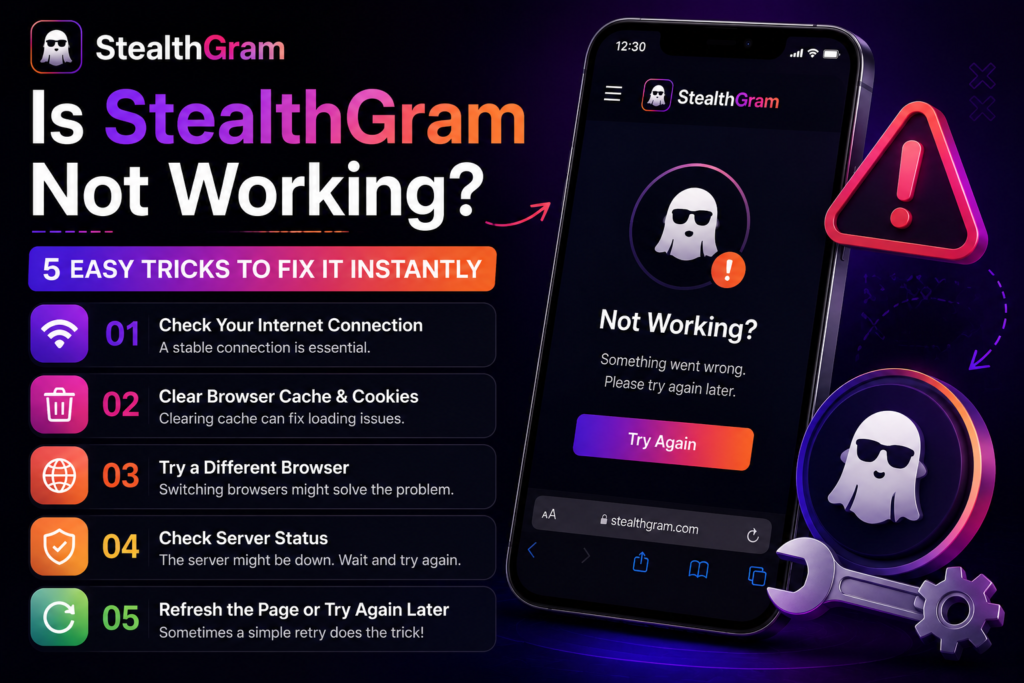

Using StealthGram is the most reliable way to check public social media feeds and stories without logging into an account. Because the entire system runs on smart cloud proxy servers, you usually do not have to worry about the typical errors or crashes that affect standard phone applications. However, there are times when the layout loads slowly, or the search bar takes too long to process a specific public handle.
When a web tool behaves like this, it is rarely a problem with the platform itself. Instead, minor device conflicts, temporary browser memory clogs, or slow internet data routes are usually the actual causes behind the issue.
Fortunately, you do not need any technical skills to get the tool running smoothly again. If you are experiencing a temporary slowdown, follow these five simple troubleshooting tricks to restore your private viewing sessions instantly.
1. Refresh Your Temporary Mobile Browser Cache
If you notice that StealthGram is not loading data or the search screen seems completely frozen, your mobile browser’s temporary memory is the first thing you should check. Every time you visit a website, your phone saves small files like images and scripts to speed up future visits. Over time, these files can become corrupted and cause web tools to stall.
Fixing this is incredibly simple on any smartphone:
- For Android (Chrome): Tap the three dots in the top right corner, open your history, select “Clear Browsing Data,” and check the box for cached images and files.
- For iPhone (Safari): Open your main iOS settings menu, scroll down to the Safari app option, and tap “Clear History and Website Data.”
Once your local cache is completely empty, open a fresh tab and reload StealthGram. In most cases, removing these old backend files resolves loading issues immediately.
2. Verify the Exact Formatting of the Public Handle
Sometimes, the system might look like it is failing when it is actually just struggling to read a bad search request. If StealthGram shows a constant loading loop or a “Profile Not Found” message, double-check exactly how you typed the username into the central interaction box.
The automated cloud proxy scripts require a clean, raw text input to fetch data correctly from public servers. Make sure your search follows these rules:
- Remove the Special Character: Do not include the
@symbol at the very beginning of the handle. - Watch Out for Spaces: Mobile keyboards often add an accidental blank space at the very end of a word when you hit enter. Backspace to ensure the text ends exactly on the last character of the username.
- Check the Profile Status: Ensure the target account is fully public. Private profiles cannot be accessed by external web scrapers due to privacy restrictions.
3. Switch Your Active Mobile VPN Server Region
Many privacy-conscious users keep a virtual private network running constantly on their smartphones. While a VPN is excellent for general security, high user congestion on a slow or overcrowded proxy server can cause the data requests inside StealthGram to completely time out.
If your connection drops or the media timeline fails to generate, open your VPN application and change your location profile. Switching from a crowded server region to a fresh country node will instantly refresh your digital path. A clean, high-speed connection allows the backend framework of StealthGram to securely establish a handshake with public data hubs without hitting an un-skippable connection wall.
4. Test the Platform on an Alternative Web Browser
Web platforms update their source code constantly to patch security vulnerabilities. If you are using an outdated mobile browser or a tracking-blocker extension with strict administrative access, the local script might accidentally break the visual layout of StealthGram.
To figure out if your default browser is causing the issue, try opening the platform on a different app:
- If you are encountering problems on Google Chrome, copy the link and paste it into Samsung Internet, Microsoft Edge, or a privacy-focused tool like Brave.
- On iOS, swap between native Safari and Chrome for mobile.
Running StealthGram on an alternative engine instantly bypasses localized extension conflicts, giving you a completely clean slate for your research sessions.
5. Switch Between Local Wi-Fi and Mobile Data
If you have tried clearing your cache and changing your browser but the portal still will not process your search, your local network configuration might be blocking the request. Some public Wi-Fi networks or office routers use strict administrative firewalls that automatically block third-party proxy tools and web utilities.
To test this, disconnect your smartphone from your local Wi-Fi router and switch entirely to your phone’s cellular mobile data. Reload the main web index page. If the system processes the request instantly, it means your local network provider was restricting the connection. By switching networks, you give StealthGram a clear, un-throttled pathway to run its automated cloud processes smoothly.
Quick Performance Troubleshooting Checklist
| Potential Problem | Fastest Quick Fix | Expected Result |
| Corrupted browser memory files | Clear your temporary site cache | Page elements load instantly |
| Search text formatting errors | Remove the @ icon and trailing spaces | Smooth profile data retrieval |
| Strict local network firewall barriers | Switch from local Wi-Fi to cellular data | Bypasses local network blocks |
| Overcrowded VPN routing nodes | Toggle your active VPN to a fresh region | Eliminates connection timeouts |
| Local extension code conflicts | Open the portal inside an alternative browser | Restores the visual web interface |
Summary
You do not have to let temporary browser bugs or slow network routes ruin your anonymous research sessions. Most issues that make it look like a tool is broken are just minor communication gaps between your local phone browser and remote servers.
By clearing out your browser cache, checking your text formatting, or switching to a fresh mobile network, you can ensure that StealthGram runs perfectly every single time you need to view public updates safely.







Pingback: How to Do Competitive Market Research Anonymously via StealthGram - Anonymous Insta Story Viewer & Downloader
Pingback: Fix StealthGram Not Working Errors (5 Quick Methods)