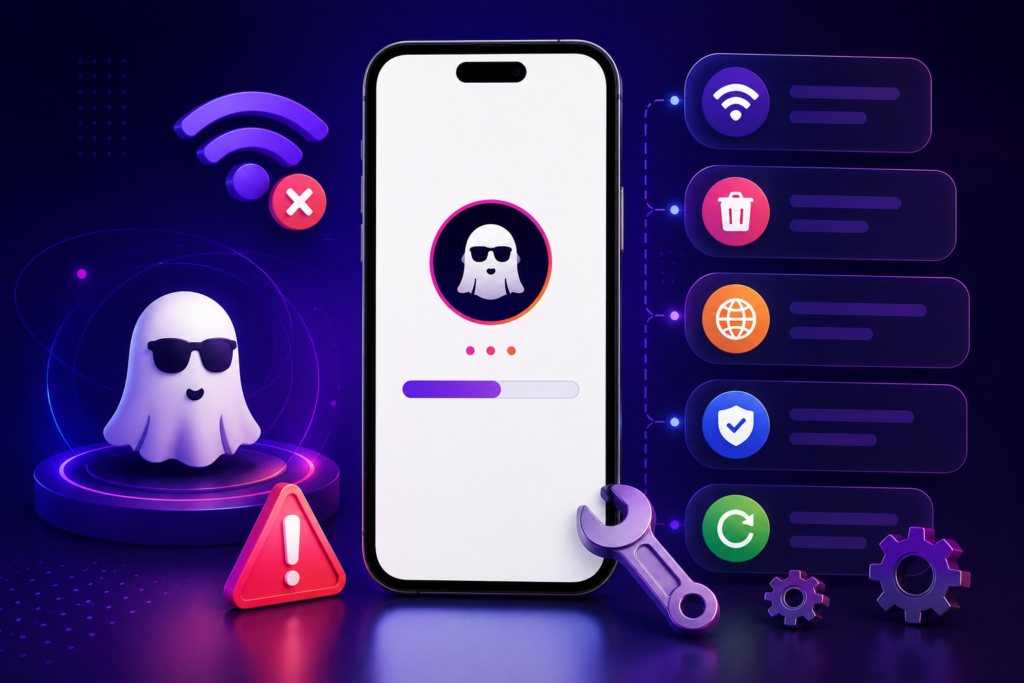

Using StealthGram is one of the most reliable ways to view public social media content and stories without ever logging into an account. Because it operates as a web-based proxy, you do not have to download heavy files or deal with risky applications. However, just like any other web utility, you might occasionally face technical glitches. The most frustrating issue is when the page suddenly stops responding or gets stuck on a blank background.
When you see a blank page, it usually means something is blocking the scripts from connecting to the hosting network. Fortunately, you do not need advanced technical skills to get things running smoothly again.
By applying a few basic browser adjustments, you can quickly clear away the frontend errors. Let us look at five easy and practical methods to fix loading bugs and restore your online privacy sessions instantly.
1. Clear Your Local Browser Cache and Cookies
The most common reason for a page loading error is corrupted temporary data inside your browser. Every time you open a website, your phone or computer saves small files to help the page load faster during your next visit. If these files get mixed up, the portal might freeze.
To fix this, go straight into your browser’s privacy settings menu. Locate the option to clear your browsing history, and make sure to select both cookies and cached images. Once you wipe this temporary data, restart your browser and open StealthGram fresh. In most cases, refreshing the cache completely deletes the old layout scripts and forces the system to load the newest version instantly.
2. Disable Incompatible Ad Blockers and Extensions
Many internet users rely on aggressive ad blockers and script-filtering extensions to keep their screens clean. While these security tools are great for general web browsing, they can sometimes cause unintended issues with web proxies. Strong content filters often mistake secure data scraping scripts for unwanted tracking codes.
If you notice that StealthGram is stuck on a white screen, your browser extensions might be blocking the core connection. Try turning off your ad blocker for a few moments, or add the proxy URL to your extension’s trusted safelist. Once the filtering tool stops blocking the background scripts, the media viewer interface should load up without any further delays.
3. Check for Platform Database Server Outages
Sometimes, the loading problem has nothing to do with your personal phone, computer, or local internet connection. Because web proxies process a massive amount of media requests every single minute, the main hosting servers can occasionally become overloaded or undergo routine maintenance.
If you have already cleared your browser cache but the page still refuses to load, the network servers behind StealthGram might be temporarily down. The easiest way to verify this is to check the platform from a completely different device or ask a friend to open the link. If the site is facing a brief server outage, you simply need to wait a few minutes for the developers to finish upgrading the backend infrastructure.
4. Switch to an Alternative Web Browser
Different web browsers use distinct internal rendering engines to display online content. A script layout that struggles to load on one specific mobile application might run perfectly fine on a different browser setup. If you are experiencing repeated errors, switching your application is a quick way to test the site.
For example, if the default browser on your smartphone keeps displaying a blank layout, try opening StealthGram inside a well-known alternative like Google Chrome, Mozilla Firefox, or Microsoft Edge. Using a different browser often bypasses hidden script compatibility conflicts, giving you immediate access to public profiles without any frozen screens.
5. Toggle Your Device Internet Connection
A weak or unstable internet network can easily interrupt the data packets traveling between your device and the proxy server. If your Wi-Fi signal drops for even a split second while the page is generating, the core script architecture can break, leaving you with an empty white screen.
You can easily fix minor network bugs by toggling your connection. Turn on your phone’s Airplane Mode for about ten seconds, and then turn it off to refresh your network cellular towers. If you are working on a laptop at the office, try disconnecting from your main Wi-Fi router and switching over to a mobile hotspot. Providing StealthGram with a clean, stable internet stream usually fixes loading issues instantly.
Summary of Quick Fixes
| Method | What It Cleans | Expected Result |
| Clear Cache | Deletes old browser files | Loads the newest site scripts |
| Disable Extensions | Stops ad blockers from blocking data | Restores broken page features |
| Switch Browsers | Bypasses local app conflicts | Runs the proxy on a fresh layout engine |
| Refresh Network | Fixes unstable internet signals | Stabilizes connection to the server |
Final Thoughts
Dealing with a frozen webpage can be annoying, but you do not have to let minor browser conflicts disrupt your daily online research. Most loading errors are caused by small data mismatches that you can easily fix in under a minute.
By keeping your browser cache clean, managing your active extensions, and ensuring your internet signal is stable, you can easily maintain a smooth connection. Using the clean, no-login architecture of StealthGram ensures your privacy remains completely safe every time you explore public media content.







Pingback: StealthGram vs Third-Party Apps: Which is Safer?
Pingback: How to Safely Route Web Data on Mobile Devices
Pingback: StealthGram Mechanics: Neutralizing Advanced Tracker Fingerprint
Pingback: 5 Best Anonymous Instagram Story Viewers in 2026 (Safe Tools)